

Analytic accounts
Analytic accounts give an overview of costs and revenue. To access analytic accounts, go to Accounting ‣ Configuration ‣ Analytic Accounts. To create a new analytic account, click New and fill in the following information:- Analytic Account: Assign the name of the analytic account.
- Customer: Select the customer linked to the project, if applicable.
- Reference: Include a reference to make the account easier to find if needed.
- Plan: Link the Analytic Account to an analytic plan.
- Company: In a multi-company environment, select the company using the analytic account. To make the analytic account accessible to all companies, leave the field empty.
- Currency: Update the currency of the analytic account if needed.
Analytic plans
Analytic plans group analytic accounts, allowing the company to analyze its accounting, such as tracking costs and revenues by project or department. To access analytic plans, go to Accounting ‣ Configuration ‣ Analytic Plans. Click New to create a new plan, add a name, and fill in the following information:- Parent: Link the plan to another analytic plan if a hierarchy between plans must be built.
- Default Applicability: Define how the plan is applied when creating a new journal entry:
- Optional: Adding the analytic plan is not mandatory.
- Mandatory: The entry cannot be confirmed if no analytic account is selected.
- Unavailable: The plan is not available.
- Color: Set a color for the tag related to this specific plan.
- Domain: Choose the accounting documents to which the plan applies.
- Financial Accounts Prefixes: Enter the prefix(es) of the account(s) to which the plan applies.
- Product Category: Choose the product category to which the plan applies.
- Applicability: Define how the plan is applied when creating a new journal entry. The applicability set here always overrides the default applicability.
- Company: In a multi-company environment, select the company using the plan. To make the analytic plan accessible to all companies, leave the field empty.
- Subplans: To have a more complex analytic structure. Click the smart button, then click New to add a subplan. This creates a parent-child relationship between the two plans, and the Parent field of the subplan is automatically populated with the original plan.
- Analytic Accounts: To access the analytic accounts linked to the plan.
NoteEach analytic plan must have at least one analytic account.
Analytic distribution
The distribution of costs in one or more analytic accounts can be set in each invoice/bill or en masse.NoteThe analytic distribution is prefilled based on the applicability and the analytic distribution models.
Analytic distribution on invoices or bills
To add analytic distribution, click the Analytic Distribution column when creating an invoice or bill.NoteThe Analytic Distribution field is mandatory only if the analytic plan has been set as Mandatory in either the Default Applicability field on an analytic plan or the Applicability field on an analytic plan line.
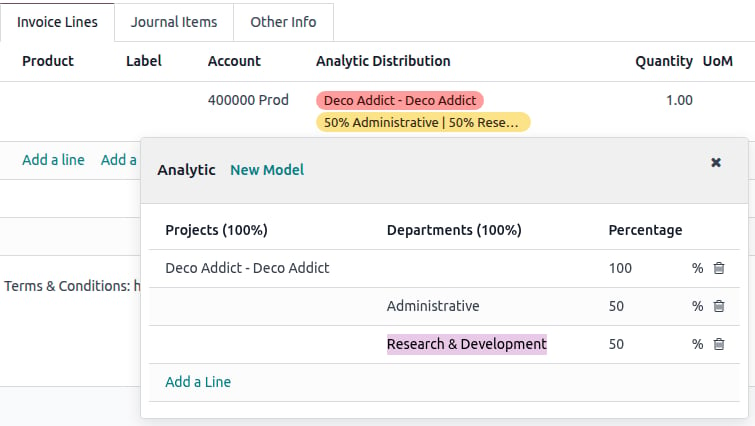
Analytic distribution en masse
To mass-edit analytic accounts in several entries simultaneously, go to Accounting ‣ Accounting ‣ Journal items, and select the ones that need to be updated. Click the Analytic Distribution column and add the required distribution in the Analytic column, then click the (cross) and Confirm. The analytic distribution is then added to the selected journal items.Analytic distribution models
Analytic distribution models automatically apply a specific distribution based on defined criteria. To create a new analytic distribution model, go to Accounting ‣ Configuration ‣ Analytic Distribution Models, click New, and set the conditions the model has to meet to apply automatically:Note
- All specified conditions of an analytic distribution model must be met for the model to be applied. To apply an analytic distribution model based on individual conditions, create separate analytic distribution models for each condition.
- Analytic distribution models can be combined and sequenced, allowing distribution across multiple models if linked to different analytic plans. To adjust the order, drag and drop the models using the (draggable) icon.
- Accounts Prefixes: Apply the distribution model only to journal items involving accounts that begin with specific prefixes.
- Partner: Apply the distribution model only to journal items involving a specific partner.
- Product: Apply the distribution model only to journal items involving a specific product.
- Company: In a multi-company environment, apply the distribution model only to journal items involving a specific company. To apply it across all companies, leave the field empty.
- Analytic Distribution: Analytic distribution that will be applied when the above conditions are met.
ExampleAny time a journal item is posted to the Utilities (601000) account, it should be automatically distributed in the Departments analytic plan as follows:
- 60% to the Manufacturing analytic account
- 30% to the Marketing analytic account
- 10% to the Admin analytic account
601, as Utilities (601000) is the only account in the chart of accounts that begins with 601.If additional accounts such as Electricity (601100) or Gas (601200) are available in the chart of accounts, the distribution will also apply to both since they share the same prefix.- Partner Category: Apply this distribution model only to journal items involving a partner in a specific category.
- Product Category: Apply this distribution model to journal items involving a product in a specific category.