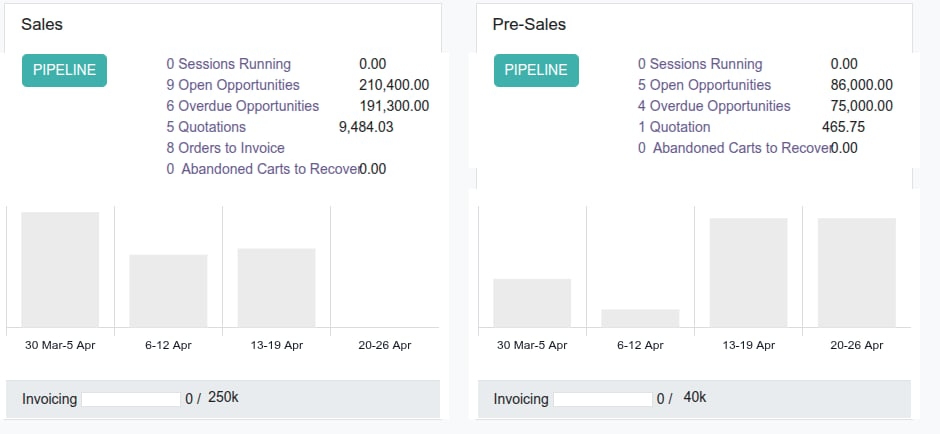
Create a sales team
To create a new sales team, go to CRM app ‣ Configuration ‣ Sales Teams, then click New. On the blank sales team form, enter a name in the Sales Team field. Next, select a Team Leader from the drop-down list. Set an Email Alias to automatically generate a lead/opportunity for this sales team whenever a message is sent to that unique email address. Choose whether to accept emails from Everyone, Authenticated Partners, Followers Only, or Authenticated Employees. Select a Company from the drop-down menu to assign this team to.NoteThe Company field is only visible in multi-company databases, and is not required.
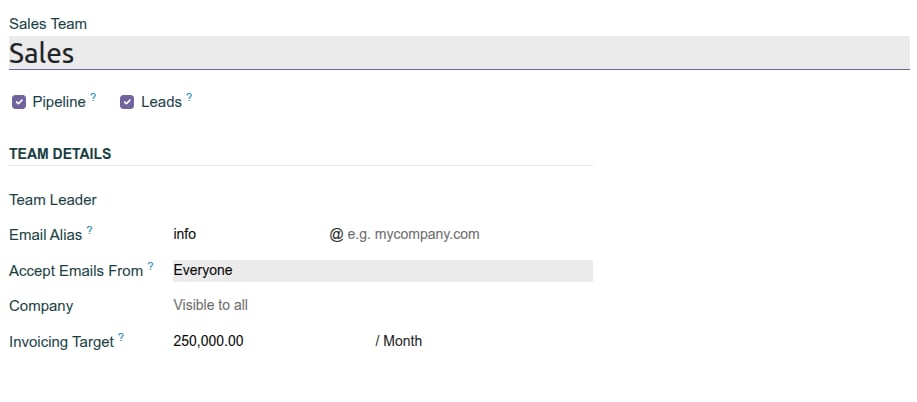
NoteIf the Sales app is installed on the database, an Invoicing Target field appears on the sales team form. This is the revenue target for the current month. The amount entered in this field is used to populate the invoicing progress bar on the sales team dashboard.
Add sales team members
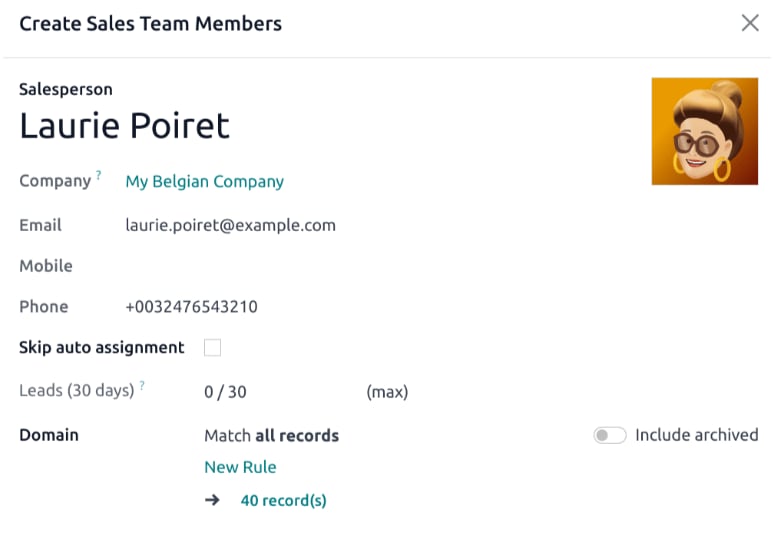
To add team members, click Add under the Members tab when editing the sales team’s configuration page. This opens a Create Sales Team Members pop-up window.NoteIf the Rule-Based Assignment feature has not been enabled on the CRM app’s Settings page, clicking Add under the Members tab opens an Add: Salespersons pop-up window. Tick the checkbox to the far-left of the salesperson to be added to the team, then click Select.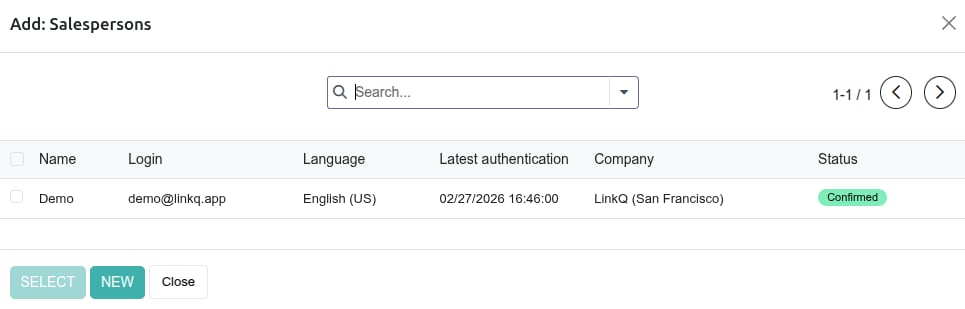
Enable multi teams
To allow salespeople to be assigned to more than one sales team, the Multi Teams setting needs to be enabled. First, navigate to CRM app ‣ Configuration ‣ Settings. Under the CRM section, tick the checkbox labeled Multi Teams. Then, click Save at the top-left of the page.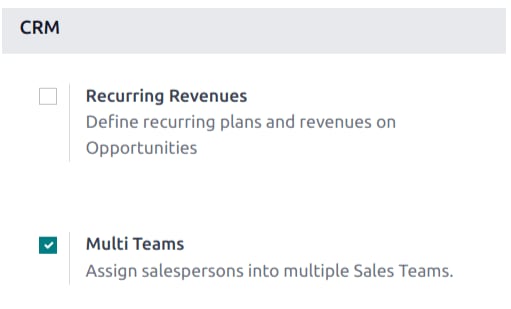
Sales team dashboard
To view the sales team dashboard, go to CRM app ‣ Sales ‣ Teams. Any team the user is a member of appears in the dashboard.