

- If a payment is linked to an invoice or bill, it reduces/settles the amount due on the invoice. Multiple payments on the same invoice are possible.
- If a payment is not linked to an invoice or bill, the customer has an outstanding credit with the company, or the company has an outstanding debit with a vendor. Those outstanding amounts reduce/settle unpaid invoices/bills.
Payment methods
Several payment methods are available in LinkQ to allow different configurations for different types of payments. Examples of payment methods include manual payments (such as cash), checks, and batch payment files (such as NACHA and SEPA). Payment methods can be configured in the Incoming Payments and Outgoing Payments tabs of a bank or cash journal.Preferred payment method
A contact’s preferred payment method can be set so that when a payment is created for that contact, the payment method is automatically selected by default. Invoices and bills can be filtered by Payment Method to simplify group payments. To set a preferred Payment Method for a customer or a vendor, go to Accounting ‣ Customers ‣ Customers or Accounting ‣ Vendors ‣ Vendors and select the customer or vendor. In the Sales & Purchase tab of the contact form, select the preferred Payment Method in the Sales section for invoice payments or for vendor bill payments in the Purchase section.Checks
Vendor bills can be paid by check using a dedicated outgoing payment method, which allows check numbers to be tracked and checks to be printed directly from LinkQ. For incoming customer check payments, you can use the default Manual Payment payment method, or you can create a payment method specifically for checks to help identify such payments quickly. To create a Check payment method, follow these steps:- Go to Accounting ‣ Configuration ‣ Journals and select the Bank journal.
- In the Incoming Payments tab, click Add a line.
- As Payment Method, select Manual, then enter
Checkas the Name.
NoteRegistering a customer payment by check in LinkQ does not move funds. Checks must be deposited in order to make the payment. Once deposited to your bank, the check should appear as a bank transaction, at which point it can be reconciled with the registered payment.
Registering payment from an invoice or bill
To register a payment for an invoice or a bill, follow these steps:- Click Pay on a customer invoice or vendor bill. In the Pay window, select the Journal and the Payment Date.
- If previously set, the contact’s preferred Payment Method is automatically selected by default but can be updated if necessary.
- If using payment terms, the Amount is automatically set based on the installment amounts defined by the payment term. To pay the full amount instead, click full amount.
- If necessary, edit the Memo.
- Click Create Payment.
- Without outstanding accounts
- Using outstanding accounts
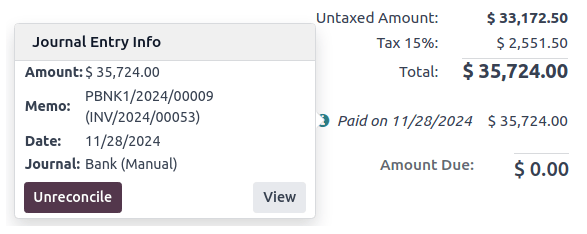
If no outstanding accounts are configured, no journal entry is created. To display more information about the payment, click the Payments smart button.When the invoice or vendor bill is reconciled with a bank transaction, its status is updated to Paid.
Note
- If a bank transaction is reconciled in a different currency, a journal entry is automatically created to post the currency exchange gains/loss amount.
- When a bank transaction is reconciled with an invoice with cash-basis, a journal entry is automatically created to post the cash-basis tax amount.
Registering payments on multiple invoices/credit notes or bills/refunds (group payments)
To register payments on multiple invoices/credit notes or bills/refunds, follow these steps:- Go to Accounting ‣ Customers ‣ Invoices/Credit Notes or Accounting ‣ Vendors ‣ Bills/Refunds.
- In the list view, click into the search bar, group by Payment Method, select the relevant invoices/credit notes or bills/refunds and click Pay.
- In the Pay window, select the Journal and the Payment Date.
- If previously set, the contact’s preferred Payment Method is automatically selected by default but can be updated if necessary.
- If using payment terms, the Amount is automatically set based on the installment amounts defined by the payment term. To pay the full amount instead, click full amount.
- To combine all payments from the same contact into a single payment, enable the Group Payments option, or leave it unchecked to create separate payments.
-
Click Create payment.
- Without outstanding accounts
- Using outstanding accounts
The invoices or bills are then marked as In payment until they are reconciled with the bank transactions.
Registering a single payment for multiple customers or vendors (batch payments)
Batch payments allow grouping payments from multiple customers to ease reconciliation. They are also useful when depositing checks or cash payments to the bank or for generating bank payment files such as SEPA or NACHA.Payments matching
The Payments matching tool opens all unreconciled journal items and allows them to be processed individually, matching all payments and journal items. Go to the Accounting Dashboard, go to Accounting ‣ Accounting ‣ Reconcile or click the (ellipsis) button from the Customer Invoices or Vendor Bills journals, and select Payments Matching.NoteDuring the reconciliation, if the sum of the debits and credits does not match, there is a remaining balance. This either needs to be reconciled at a later date or written off directly.
Registering a partial payment
To register a partial payment, click on Pay from the related invoice or bill.- Without outstanding accounts
- Using outstanding accounts
In the case of a partial payment (when the Amount paid is less than the total remaining amount on the invoice or the bill), fill in the Amount in the Pay window.
Reconciling payments with bank transactions
- Withoutstanding accounts
- Using outstanding accounts
Once a payment has been registered, the status of the invoice or bill is In payment. The next step is reconciling the related bank transaction line with the invoice or bill to finalize the payment workflow and mark the invoice or bill as Paid.