View expense reports
Users who are able to approve expense reports (typically managers) have an Expense Reports main navigation button at the top of the Expenses app. This allows managers to view all expense reports they have access rights for. Navigate to Expenses app ‣ Expense Reports, to view the All Reports dashboard. A list of all expense reports with a status of either To Submit, Submitted, Approved, Posted, or Done appears. Expense reports with a status of Refused are hidden, by default.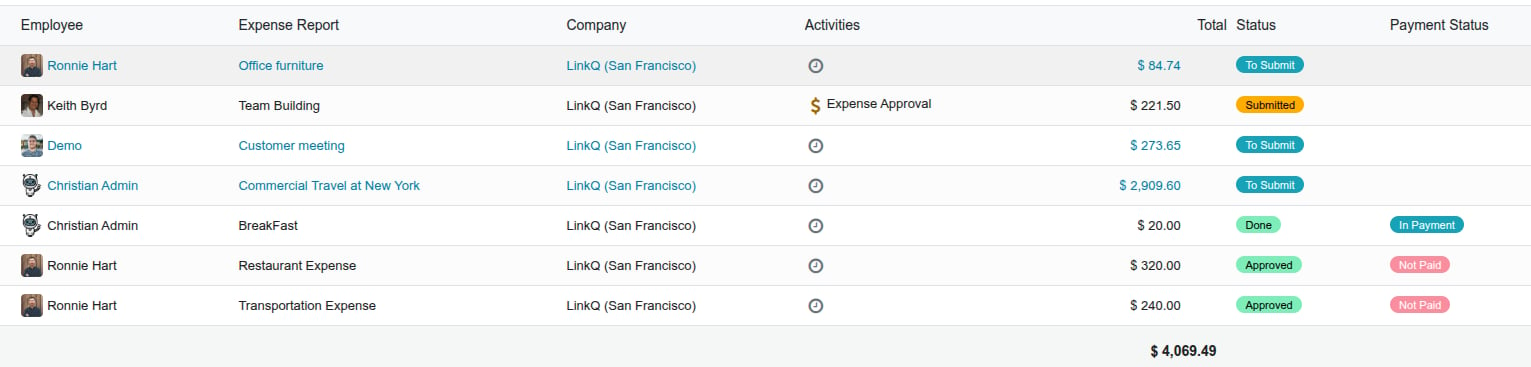
Approve expense reports
Expense reports can be approved in two ways: individually or in bulk.Approve individual reports
To approve an individual report, navigate to Expenses app ‣ Expense Reports, and click on an individual report to view the detailed report form. From here, several options are presented: Approve, Refuse, and Reset to draft. Click Approve to approve the report.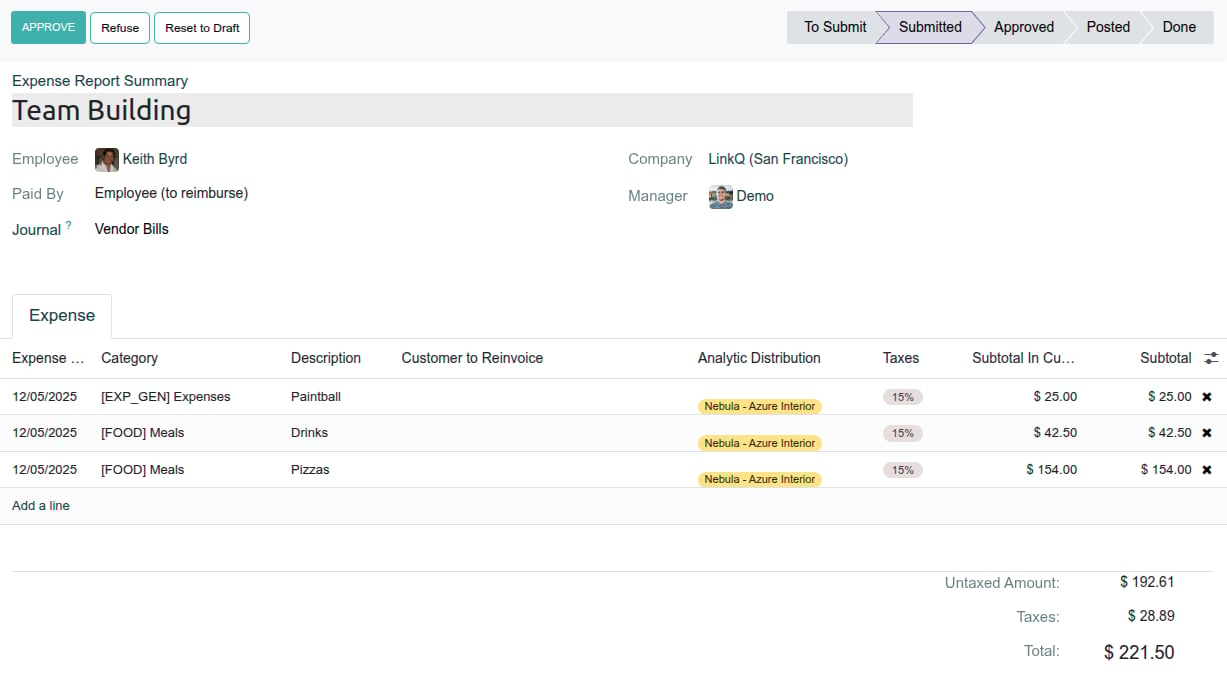
Approve multiple reports
To approve multiple expense reports at once, first navigate to Expenses app ‣ Expense Reports to view a list of expense reports. Next, select the reports to approve by ticking the checkbox next to each report being approved, or tick the checkbox next to the Employee column title to select all the reports in the list. Next, click the Approve Report button.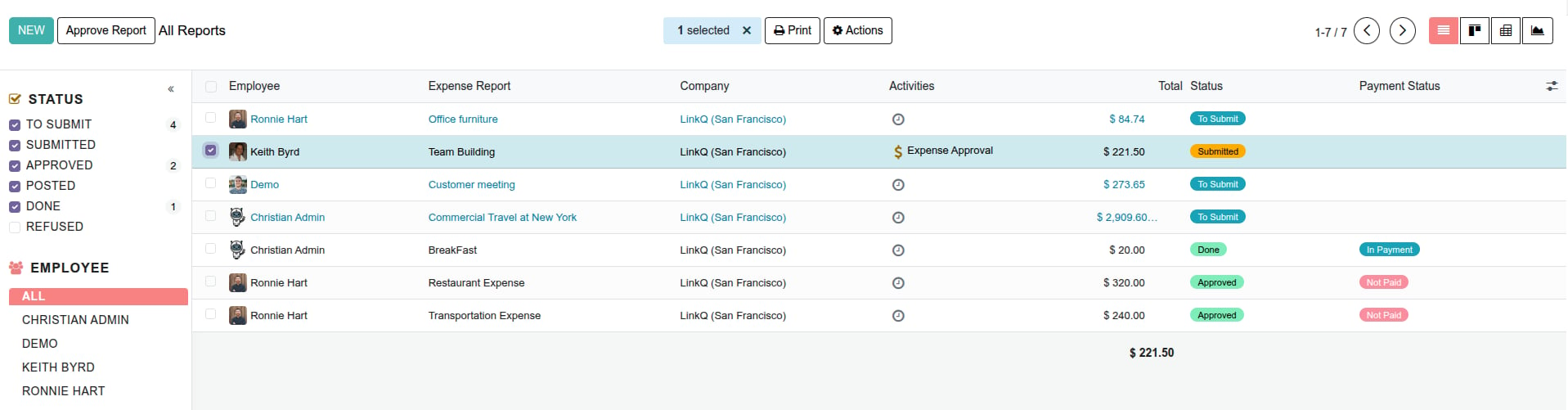
Refuse expense reports
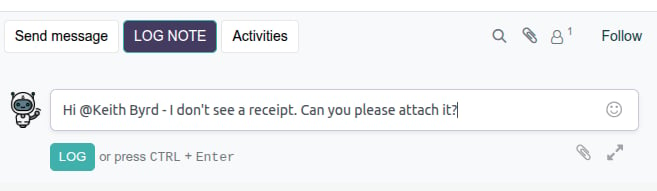
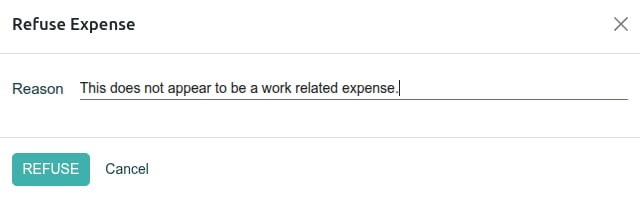
Expense reports can only be refused on the individual expense report, and not from the All Reports dashboard. To open an individual expense report, navigate to Expenses app ‣ Expense Reports, then click on an individual expense report to view the detailed expense report form. If more information is needed, such as a missing receipt, communicate any necessary information requests in the chatter of the report form. On the individual expense report, click either Send message or Log note to open a message text box. Type in a message, tagging the proper people, and post it to the chatter by clicking Send or Log, depending on the method of communication. The message is posted in the chatter, and the tagged people are notified via email.NoteThe only people that can be tagged in a message are followers of the specific report. To see who is a follower, click the (Show Followers) icon to display the followers of the expense report.