
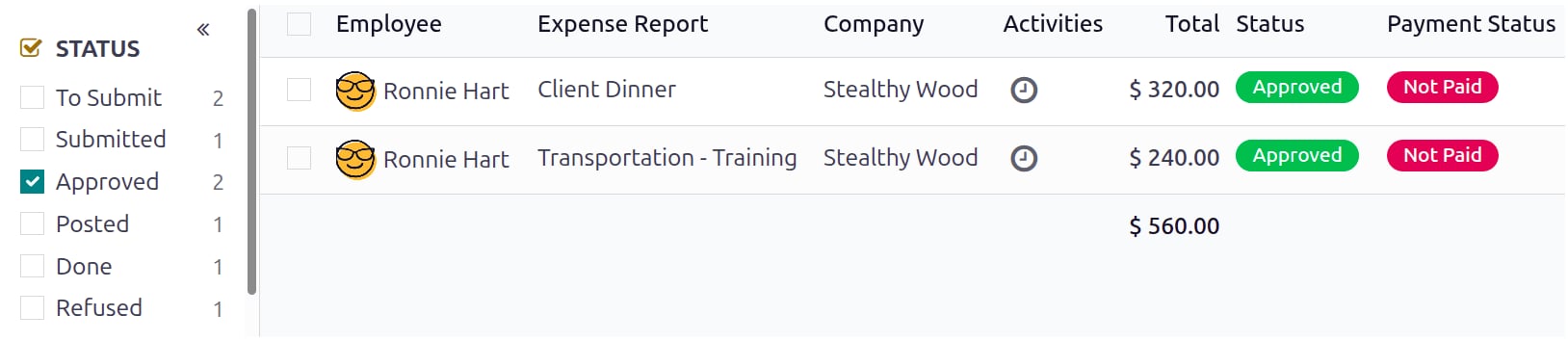
NoteThe default All Reports dashboard displays all expense reports that are not Refused.
Post individual reports
To post an individual report, navigate to Expenses app ‣ Expense Reports, and click on an individual report with a Status of Approved, to view the report form. In this view, several options are presented: Post Journal Entries, Report In Next Payslip, Refuse, or Reset to Draft. Click Post Journal Entries to post the report. The accounting journal the expenses are posted to is listed in the Journal field of the expense report. After posting the expenses to an accounting journal, a Journal Entry smart button appears at the top of the screen. Click the Journal Entry smart button, and the details for the journal entry appear, with a status of Posted.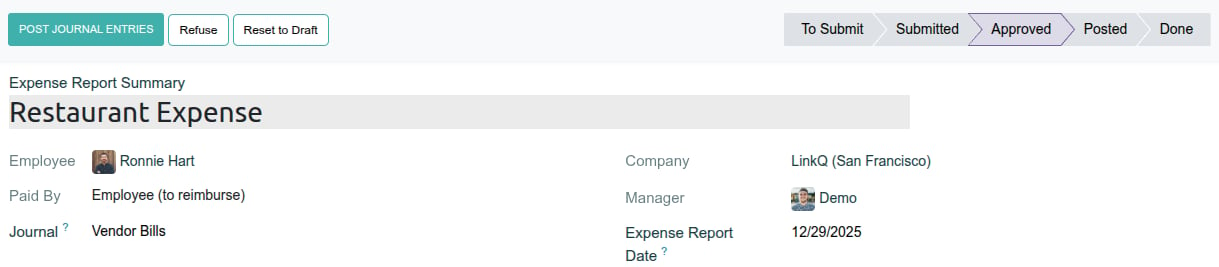
Post multiple reports
To post multiple expense reports at once, navigate to Expenses app ‣ Expense Reports to view a list of expense reports. Next, select the reports to approve by ticking the checkbox next to each report being approved.NoteOnly expense reports with a status of Approved are able to post the expenses to an accounting journal. If an expense report is selected that cannot be posted, such as an unapproved report, or the report has already been posted to a journal, the Post Entries button is not visible.