
Configuration of an account
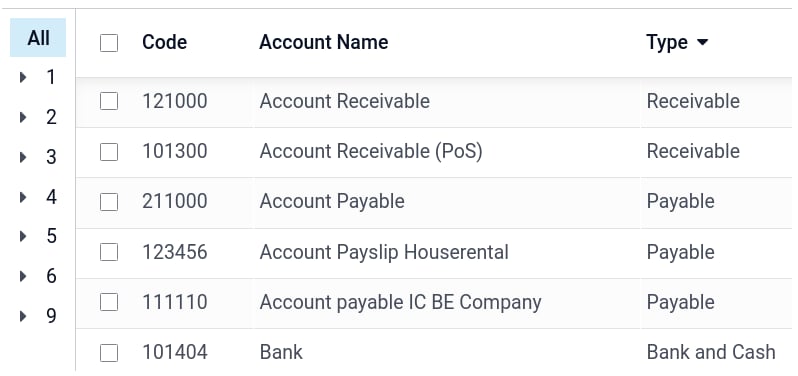
The country you select during the creation of your database (or additional company in your database) determines which fiscal localization package is installed by default. This package includes a standard chart of accounts already configured according to the country’s regulations. You can use it directly or set it according to your company’s needs. To create a new account, go to Accounting ‣ Configuration ‣ Chart of Accounts, click Create, and fill in (at the minimum) the required fields (Code, Account Name, Type).Code and name
Each account is identified by its Code and Name, which also indicate the account’s purpose.Type
Correctly configuring the account type is critical as it serves multiple purposes:- Information on the account’s purpose and behavior
- Generate country-specific legal and financial reports
- Set the rules to close a fiscal year
- Generate opening entries
Assets
Some account types can automate the creation of asset entries. To automate entries, click View on an account line and go to the Automation tab. You have three choices for the Automation tab:- No: this is the default value. Nothing happens.
- Create in draft: whenever a transaction is posted on the account, a draft entry is created but not validated. You must first fill out the corresponding form.
- Create and validate: you must also select a Deferred Expense Model. Whenever a transaction is posted on the account, an entry is created and immediately validated.
Default taxes
In the View menu of an account, select a default tax to be applied when this account is chosen for a product sale or purchase.Tags
Some accounting reports require tags to be set on the relevant accounts. To add a tag, under View, click the Tags field and select an existing tag or Create a new one.Account groups
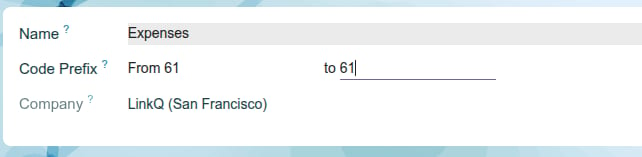
Account groups are useful to list multiple accounts as sub-accounts of a bigger account and thus consolidate reports such as the Trial Balance. By default, groups are handled automatically based on the code of the group. For example, a new account131200 is going to be part of the group 131000. You can attribute a specific group to an account in the Group field under View.
Create account groups manually
NoteRegular users should not need to create account groups manually. The following section is only intended for rare and advanced use cases.